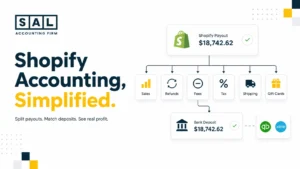

A Shopify store can look busy on the surface. Orders are coming in. Sales are showing in the dashboard. Everything seems to be moving. Then the payout hits your bank account, and the number is lower than expected. That gap is usually where the confusion starts. Shopify fees, refunds, chargebacks, taxes, payment gateways, and payout timing can all change what actually lands in your bank.
At SAL Accounting, we see this a lot with ecommerce sellers. The sales are there, but the numbers get harder to trust when payouts, fees, inventory, and tax all start mixing together. This guide breaks down how Shopify payment reconciliation works, why payouts don’t always match sales, and how to keep your books clear as your store grows.
Sometimes the “missing money” is not missing at all. It’s the fee. The Shopify Fee Calculator can help you spot what Shopify may be deducting before the payout reaches your bank.
Key Takeaways
- Shopify payment reconciliation starts with the payout. Your deposit is usually lower than sales because of fees, refunds, taxes, and chargebacks.
- Shopify accounting reconciliation needs detail. Split sales, fees, refunds, and deductions so your books show the real picture.
- Manual Shopify sales matching gets slow fast. PayPal, Stripe, refunds, currencies, and higher volume all add more work.
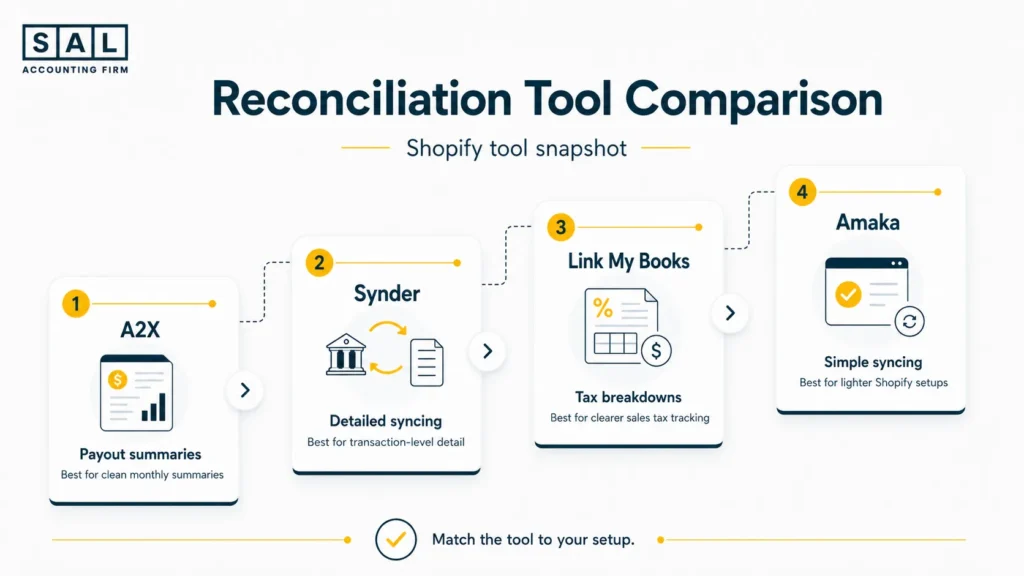
- Automation can help with ecommerce reconciliation. Tools like A2X, Link My Books, Synder, and Amaka can pull payout data into your books.
- Clean Shopify reconciliation helps you trust your numbers. You can see where your money went and whether your reports make sense.
If Shopify is your main channel and the numbers are starting to feel messy, SAL can help with Shopify accounting so you can see what your store actually keeps after fees, refunds, tax, and product costs.
Why Shopify Deposits Don’t Match Shopify Sales
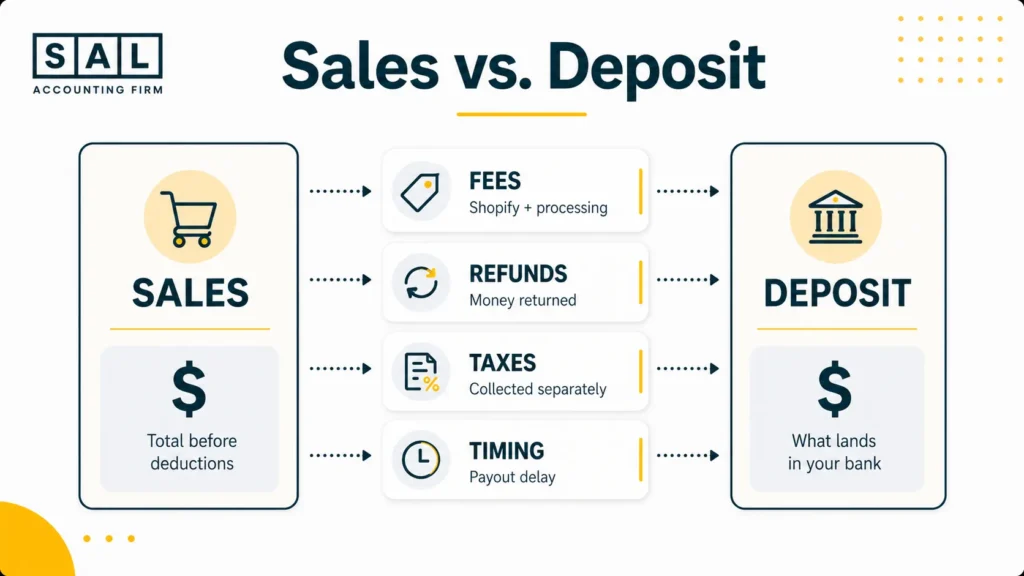
Let’s say Shopify shows that you made $1,000 in sales. But when you check your bank account, only $970 was deposited. That does not automatically mean something is wrong. It usually means Shopify or your payment provider took out items such as:
- payment processing fees
- transaction fees
- refunds
- chargebacks
- app or platform fees
- currency conversion costs
- sales tax handling differences
- timing differences between the sale and the payout
Shopify’s own payout details can include charges, refunds, adjustments, reserves, and transaction details. So the payout is not just one simple sales number.
This often connects to e-commerce payment reconciliation, because the issue is not just the sale. It is what happened between the customer payment, the platform, the payment gateway, and the bank. The point is to connect the full story:
What the customer paid → what Shopify deducted → what actually landed in your bank.
Once you can see that clearly, your numbers start to make more sense.
What Are Gross and Net Payouts in Shopify Accounting Reconciliation?
When you’re working on Shopify accounting reconciliation, there are two numbers you need to understand: gross sales and net payouts.
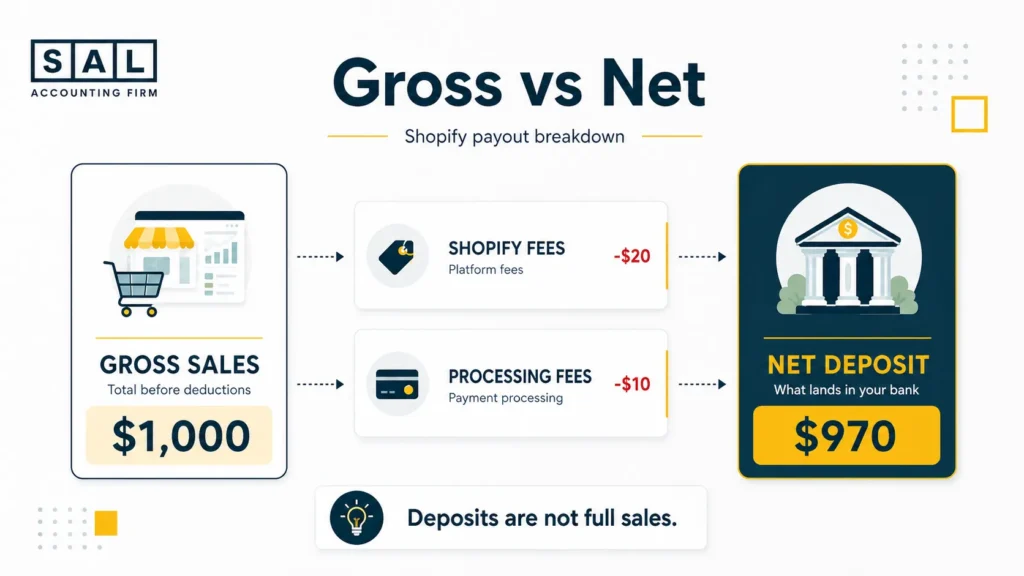
- Gross sales are the total amount customers paid before deductions.
- Net payout is the amount that actually reaches your bank account after Shopify, payment processors, refunds, and other deductions are taken out.
Here’s what that can look like in practice.
| What Happened | Amount | Why It Matters |
| Customer paid | $1,000 | This is your gross sale |
| Shopify fees | -$20 | This should show as a cost |
| Processing fees | -$10 | This should also show separately |
| Bank deposit | $970 | This is the net payout |
If you only record the $970 as sales, your books are missing part of the story. You won’t clearly see the original sale, the fees, or how much Shopify and your payment processor actually cost you. That can make your revenue look lower than it really was and hide costs that matter for profit.
This is also why Shopify fees should not be looked at in isolation. They connect to your plan, payment setup, and sales volume, which can also come up when comparing Shopify pricing in Canada. A cleaner way to handle it is to record:
- the full sale amount
- the fees as expenses
- refunds separately
- the final amount deposited into your bank
Basically, you want your books to explain the difference between what Shopify says you sold and what your bank says you received. That’s how you start getting numbers you can actually trust.
Why Is Manual Shopify Accounting Reconciliation Difficult?
Manual Shopify accounting reconciliation can work when your store is small and order volume is low. But once you start getting more sales, more refunds, more payment methods, or more complicated payout schedules, things can get messy quickly. Here’s where Shopify sellers usually get stuck.
It takes a lot of time
Matching Shopify deposits to sales, fees, refunds, and bank transactions can take hours every week. And the more orders you have, the harder it gets to keep up manually. You’re not just checking one number. You’re checking what was sold, what got refunded, what fees were deducted, what gateway processed the payment, and when the money landed in the bank.
Mistakes are easy to make
Manual data entry leaves room for small errors. Maybe a fee gets missed. Maybe a refund is recorded twice. Maybe a payout gets matched to the wrong period.
These small mistakes can build up and make your reports harder to trust. This is one of the practical issues behind many e-commerce accounting mistakes, especially when sales volume grows faster than the bookkeeping system.
Shopify payouts are grouped together
Shopify usually pays you in batches. That means one bank deposit could include several days of sales, refunds, fees, and adjustments. Shopify also explains that payout timing can depend on business days, weekends, holidays, cutoff times, and your store’s country or region in its payout timing guide.
So when you see one deposit in your bank account, it may actually represent dozens or hundreds of individual transactions. That’s why it can feel like your numbers don’t match reality.
Multiple payment gateways make it harder
If you use Shopify Payments, PayPal, Stripe, Klarna, or other third-party gateways, each one may have its own fees, reports, and payout timing. Now you’re not just reconciling Shopify.
You’re trying to match several different payment systems back to your sales. That’s where a lot of sellers start losing track.
Inventory and product costs add another layer
Payment reconciliation explains what happened to the money. But it does not automatically explain what each product cost you. That is where Shopify inventory accounting come in. If your payouts are clean but your product costs are missing, your profit can still be hard to trust.
Pro tip: Start with your largest deposits first. If something major is off, you’ll usually catch it faster there before spending time on smaller transactions.
How to Manually Reconcile Shopify Payments: A Simple Overview
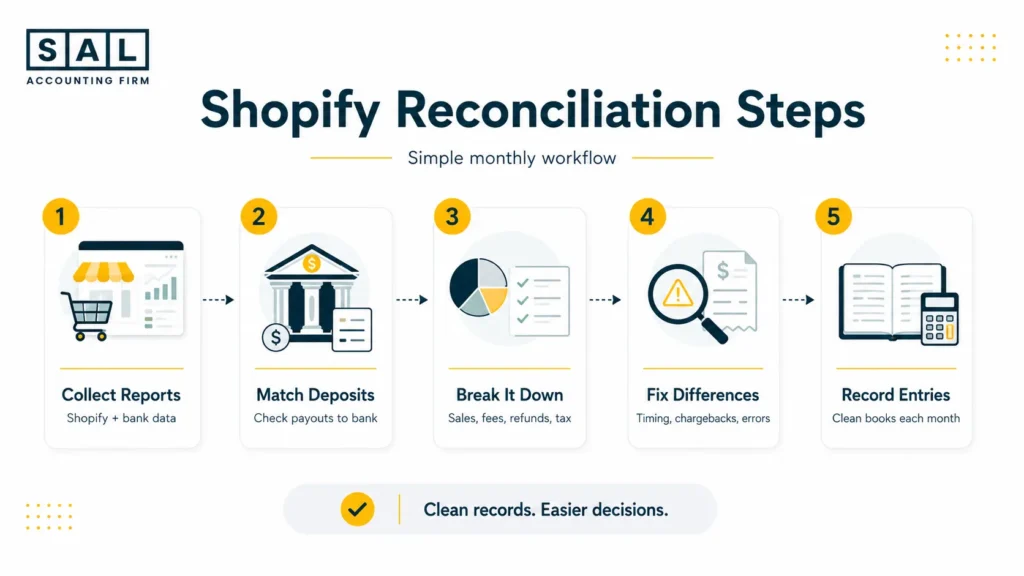
Here’s the basic process for matching Shopify payouts with your bank and accounting records.
Step 1: Collect Your Reports
Start by downloading the reports you need for the period you’re checking. You’ll usually need:
- Shopify payout reports
- Shopify sales reports
- Shopify finance reports
- bank statements
- PayPal reports, if you use PayPal
- Stripe reports, if you use Stripe
- reports from any other payment gateway you use
Shopify’s finance reports can help you track financial information such as product sales, payments, and gift card sales.
If you’re using QuickBooks, this is where the setup matters. A clean Shopify QuickBooks integration can make the data easier to match, but only if the mapping is set up properly.
Step 2: Compare Deposits
Next, compare the net payout amounts from Shopify to the deposits in your bank account. Keep in mind that deposits may take a few business days to appear.
So if Shopify shows a payout on Monday, it may not show up in your bank until Tuesday, Wednesday, or later depending on your bank and payment setup. This is normal. The key is to match the payout amount and timing properly instead of assuming something is wrong right away.
Step 3: Break Down the Deposit
Once you’ve matched the bank deposit, break it down. Don’t just label the full deposit as “Sales.” That’s where things go wrong. Let’s say Shopify deposited $970 into your bank, but the original sales were $1,000. The missing $30 might be fees. In plain English, your books should show:
- $1,000 in sales
- $20 in Shopify fees
- $10 in processing fees
- $970 received in the bank
Here’s a simple version.
| Account | Amount | What It Means |
| Sales revenue | $1,000 | What the customer paid |
| Shopify fees | $20 | Cost deducted before payout |
| Processing fees | $10 | Payment cost deducted |
| Bank deposit | $970 | What landed in the bank |
If your accountant uses formal entries, this connects to double-entry bookkeeping. But you don’t need to think like an accountant to understand the point.
- Your store made $1,000 in sales.
- Your bank received $970.
- The $30 difference needs to be shown clearly instead of disappearing.
Step 4: Fix Any Differences
If the numbers don’t match, don’t panic. This usually comes down to things like:
- timing differences
- refunds
- chargebacks
- currency conversion
- gateway fees
- missing payout reports
- deposits from another payment provider
Shopify’s refund guidance also notes that refund handling can vary depending on whether the refund is processed through Shopify admin or a third-party payment gateway. Work through the difference step by step until the payout, fees, refunds, and bank deposit line up.
Once they do, your books will show both what you earned and what it cost to process those sales. That’s what makes your Shopify numbers useful.
- Also read: “Shopify Month-End Close Checklist“
Manual vs Automated Shopify Reconciliation
Manual reconciliation and automated reconciliation both have a place. The right choice depends on your order volume, payment setup, and how much time you’re spending fixing the same issues every month. Here’s a simple comparison.
| Approach | Usually Fits | Main Benefit | Main Problem |
| Manual reconciliation | Small stores | Low software cost | Time-consuming |
| Spreadsheet support | Early growth | More control | Easy to break |
| Accounting integration | Growing Shopify stores | Cleaner syncing | Needs setup |
| Connector tool | Higher volume stores | Better payout matching | Monthly tool cost |
Manual work can be fine at the start. But as sales grow, clean systems matter more because your reports need to show what is actually happening. That also connects to e-commerce financial statements. If the inputs are messy, the reports will be messy too.
How to Automate Shopify Payment Reconciliation
Manual reconciliation can work at first, but it gets harder as your store grows. Once you’re checking Shopify payouts, PayPal deposits, Stripe fees, refunds, and accounting entries every month, automation can help.
These tools connect Shopify to QuickBooks or Xero, pull in payout details, and create cleaner entries for you. That setup is similar to broader e-commerce automation tools. The goal is not to make things fancy. It’s to cut down repeat manual work and make your numbers easier to trust.
How Automation Tools Help
Most Shopify reconciliation tools can help you:
- pull in sales, fees, refunds, taxes, and payout data
- match Shopify payouts to bank deposits
- separate gross sales from net deposits
- create accounting entries automatically
- reduce manual data entry
- handle multiple payment gateways
- keep records cleaner as order volume grows
Basically, they help turn Shopify’s payout data into accounting records that make sense. That does not mean you never need to review your numbers.
But it does mean you’re not spending hours trying to manually piece everything together from different reports. Before choosing a tool, it helps to understand how it fits into your wider Shopify accounting software setup.
Top Automation Tools for Shopify Sellers
Here are a few common tools Shopify sellers use for payment reconciliation and ecommerce reconciliation.
| Tool | Usually Good For | Connects With |
| A2X | Clean payout summaries | QuickBooks, Xero, Sage, NetSuite |
| Synder | Detailed transaction syncing | QuickBooks, Xero, NetSuite, Sage Intacct |
| Link My Books | Sales, fees, refunds, and tax summaries | QuickBooks, Xero |
| Amaka | Simpler Shopify syncing | QuickBooks, Xero, MYOB |
A2X
A2X creates summarized accounting entries for each Shopify payout. This can be useful if you want clean payout summaries instead of every single order flooding your accounting software. According to the Shopify App Store, A2X can help categorize:
- sales
- fees
- taxes
- refunds
- gift cards
- payout summaries
This connects to A2X for Shopify integration if you’re trying to decide whether payout summaries are better than syncing every transaction.
Synder
Synder is useful for stores that want more detailed transaction syncing. It can help with:
- Shopify sales
- payment gateway data
- multi-currency transactions
- refunds and discounts
- shipping
- customer details
The Shopify App Store says Synder can sync Shopify sales, fees, taxes, refunds, discounts, gift cards, shipping, and customers into accounting platforms. This can be helpful if your store has more moving parts, especially if you use several payment processors.
Link My Books
Link My Books connects Shopify with QuickBooks and Xero. It can help summarize your payout data so your books are easier to follow. According to the Shopify App Store, Link My Books can break down:
- sales
- refunds
- fees
- taxes
- payment gateways
- Shopify payouts
This is especially useful if you want clearer tax breakdowns and cleaner monthly records.
Amaka
Amaka can help sync Shopify sales and payout data into your accounting software. Its Shopify App Store listing says Amaka can sync order data into Xero, QuickBooks Online, or MYOB, including:
- sales
- COGS
- refunds
- fees
- gift cards
- taxes
- payment types
It can be a good fit if you want a simpler setup and less manual work keeping Shopify records updated.
Quick Note on Shopify Integrations
QuickBooks and Xero both offer Shopify-related connections, but the basic connection may not give you the full reconciliation detail you need. For Xero users, the Shopify integration is built by Amaka, according to Xero Central. You may still need a connector tool to separate:
- sales
- fees
- refunds
- taxes
- payouts
The point is not just to “connect Shopify.” The point is to make sure the numbers coming into your books are actually useful. This is why Shopify Xero integration and QuickBooks setup both need to be checked carefully before you assume automation has fixed the problem.
How to Stay on Top of Tax Reconciliation in Canada and the U.S.
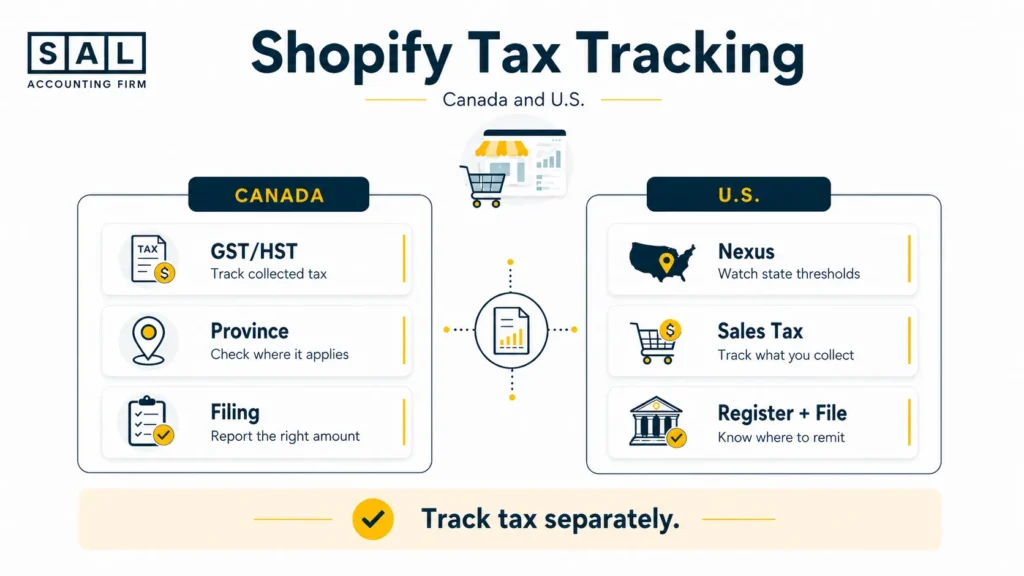
Tax is one of the biggest reasons Shopify reconciliation matters. If sales, fees, refunds, and taxes are not separated clearly, it’s harder to know what you collected, what you owe, and what needs to be reported.
Shopify’s tax reports can help, but they still need to be checked against your accounting records. Keep in mind, tax rules vary by location, business setup, and product type, so treat this as general guidance.
Canadian Sellers: GST/HST
In Canada, many businesses need to register for GST/HST once they pass the small supplier threshold. The CRA explains when businesses need to register under its GST/HST registration rules. If you’re collecting GST/HST through Shopify, your reconciliation process should help you clearly see:
- how much GST/HST was collected
- which sales had tax applied
- whether shipping was taxed correctly
- what needs to be reported when filing
The CRA also lists current provincial rates in its GST/HST rates guide, which matters if you sell across Canada. You want your Shopify records to show what you sold, what tax was collected, and what actually belongs to the business.
For Shopify sellers, this can connect directly to Shopify GST/HST tax setup because tax collected in the store still needs to be reported properly.
U.S. Sellers: State Sales Tax
U.S. sales tax gets tricky because every state has its own rules. Some states may require you to register once you pass certain sales or transaction thresholds. The Sales Tax Institute’s economic nexus chart can help you check how those thresholds vary.
Shopify can help calculate and collect tax when set up properly, but you still need to know where to register, file, and remit. Shopify Tax pricing can also matter if tax calculation costs become part of your setup. Clean reconciliation helps because you need to know:
- which states you sold into
- how much tax was collected
- whether Shopify collected the right amount
- what needs to be filed
- whether marketplace or platform rules apply
This is where the sales tax nexus for ecommerce sellers becomes important. At the end of the day, clean Shopify records make tax time less stressful because you’re not trying to rebuild the story months later.
- Also read:”Shopify Sales Tax Reporting”
Top Shopify Reconciliation Challenges and How to Handle Them
As your store grows, reconciliation usually gets harder. Not because you’re doing anything wrong. It’s just that more sales means more payouts, more refunds, more fees, and more places where money can move. Here are some common challenges.
1. Multiple Payment Gateways
If you use Shopify Payments, PayPal, Stripe, or other payment processors, each gateway may pay you separately. Each one may also have different:
- payout schedules
- fees
- reports
- refund timing
- currency handling
So one sale may be easy to see in Shopify, but the money might come through a completely different gateway. That makes Shopify sales matching harder.
Solution: Track each payment gateway separately. Reconcile Shopify Payments, PayPal, Stripe, and other gateways one at a time so deposits don’t get mixed together.
2. International Sales
If you sell internationally, you may deal with currency conversion, exchange rate changes, and foreign transaction fees.So a sale made in one currency may land in your bank as a different amount. That can make it harder to know what you actually earned.
This often comes up when sellers start looking at how to sell internationally on Shopify or when they compare platform options like Shopify vs Amazon FBA. Different channels can mean different fees, payout timing, and reporting setups.
Solution: Track currency conversion separately and record conversion fees as their own cost. If you sell in several currencies, consider setting up separate accounts or tracking categories in your accounting software.
3. Subscription and Recurring Payments
Subscription stores have their own reconciliation issues. You may need to deal with:
- failed payments
- retries
- upgrades
- downgrades
- partial refunds
- cancelled subscriptions
- recurring billing dates
This can make your monthly numbers harder to follow.
Solution: Use Shopify subscription reports and track changes separately. Failed payments, plan changes, and refunds should be visible so you can see what actually happened each month.
4. Refunds and Chargebacks
Refunds and chargebacks can make payouts confusing because the money may be deducted from a later payout, not the original sale. So if you’re only looking at one deposit, the numbers may not make sense right away. Refunds also affect both sales and cash, which is why your Shopify refund policy should match how refunds are actually handled in your books.
Solution: Match refunds and chargebacks back to the correct order where possible. Record them separately so they don’t disappear inside your net deposit.
5. Timing Differences
Sometimes Shopify shows a payout before the bank shows the deposit. That can make it look like something is missing, even when it’s just a timing issue.
Solution: Give deposits a few business days to appear before treating them as unmatched. Use payout dates, bank deposit dates, and payout IDs to match transactions properly.
Timing differences also matter for cash planning. Even if sales are strong, delayed payouts, refunds, inventory purchases, and ad spend can make cash feel tight. That is where a Shopify cash flow statement can help show what is actually moving in and out.
- Also read:”Calculate COGS for Ecommerce Stores“
When Should You Get Help With Shopify Reconciliation?
You don’t need help just because one payout looks confusing. That happens. But it may be time to get support if:
- your Shopify numbers don’t match your bank
- you’re recording deposits as sales
- you use multiple payment gateways
- refunds and chargebacks are hard to track
- you sell in Canada and the U.S.
- you’re unsure whether sales tax is being handled properly
- your reports don’t clearly show profit
- you’re spending too much time fixing the same issues every month
The goal is not just to “do the books.” The goal is to understand what your numbers are telling you. If your Shopify reports, bank deposits, and accounting software are all saying different things, an ecommerce accounting team can help you find what’s off and clean it up. If your numbers are getting harder to trust, SAL can help with e-commerce bookkeeping so your reports show what actually happened in the store.
This also connects to knowing when your ecommerce business needs a CPA, not a general accountant, especially once tax, multiple channels, or cross-border sales are involved.
Do Your Shopify Sales and Payouts Finally Match?
Shopify payment reconciliation matters because your deposit is not the full story. You might make $1,000 in sales, but only receive $970 after fees, refunds, or chargebacks. If those pieces are not separated, your books can quickly stop making sense. Manual reconciliation can work at first, but automation helps once payouts, taxes, refunds, and gateways start piling up.At the end of the day, you want to know where your money went and whether your Shopify numbers can be trusted.
If your payouts still don’t match your reports, contact SAL Accounting and get a clearer sense of what needs fixing next.