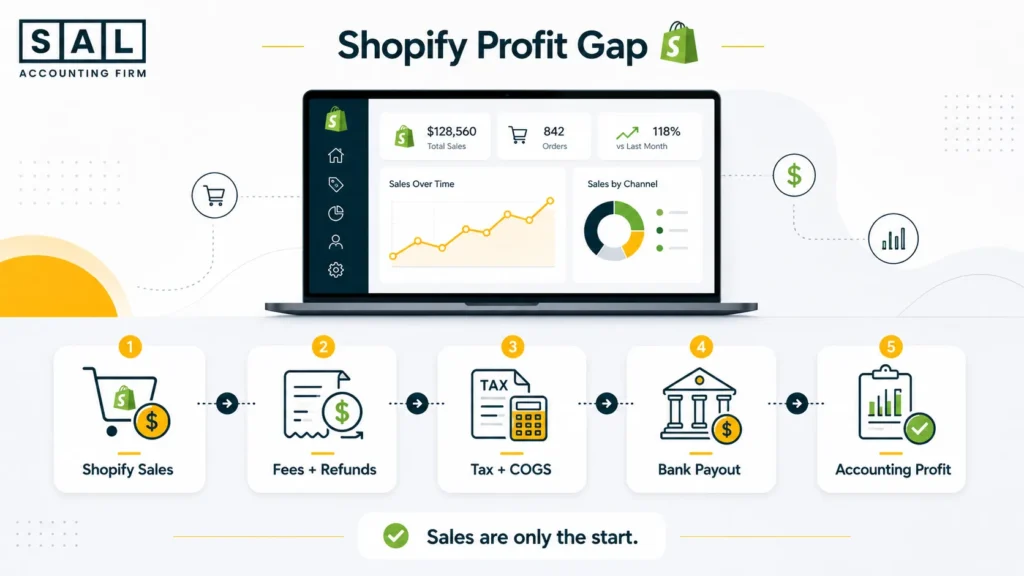
If your Shopify profit looks wrong, it usually means sales, payouts, fees, tax, refunds, COGS, shipping, and expenses are being mixed together. Shopify gives helpful store data, but it does not always match your bank deposits or accounting P&L. Retail net profit margins often sit around 2% to 10%, so even small reporting mistakes can change the story fast.
In this SAL Accounting guide, you’ll learn the common mistakes to avoid and the simple monthly workflow to calculate Shopify profit more clearly.
Quick Takeaways
- Shopify sales do not equal profit. You still need to account for refunds, discounts, taxes, fees, COGS, shipping, ads, and other costs.
- Your Shopify payout is not your revenue. It is the amount left after certain deductions and timing differences.
- If sales tax or HST is sitting inside income, your profit may look higher than it really is.
- COGS needs to include the real cost of selling the product, not just the supplier price.
- The best way to get accurate Shopify profit is to reconcile payouts, separate each cost clearly, and close your books every month.
The Shopify Fee Calculator gives you a quick starting point for checking fees, pricing, and margins.
What Are the Most Common Shopify Profit Calculation Mistakes?
The most common Shopify profit calculation mistakes are recording payouts as revenue, treating sales tax as profit, missing Shopify fees, using incomplete COGS, ignoring refunds and chargebacks, mixing shipping income with shipping costs, and skipping payout reconciliation.
Need cleaner Shopify numbers? Talk to an expert ecommerce accountant.
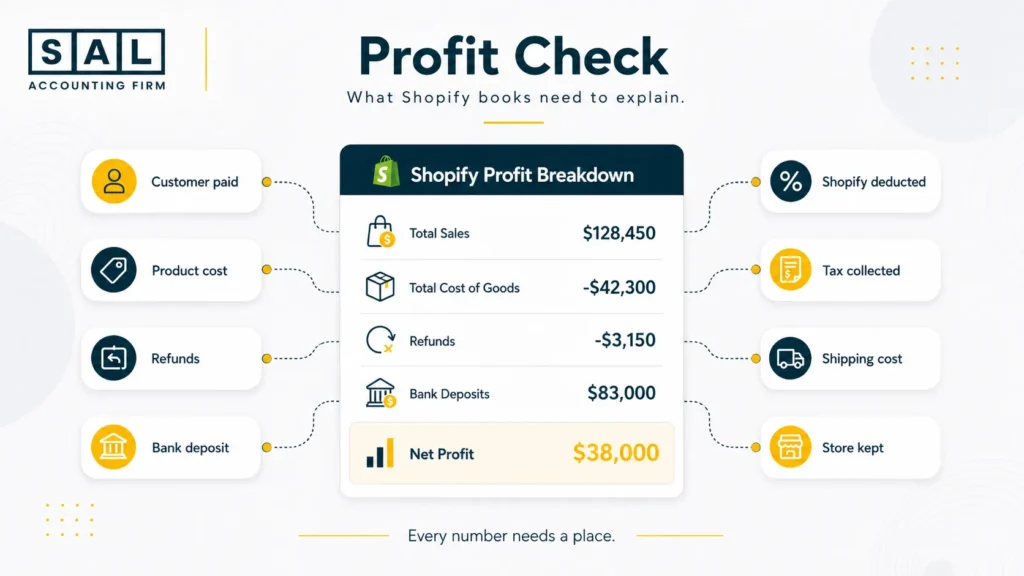
Shopify may show the sale, but your books need to explain the full story:
- what the customer paid
- what Shopify deducted
- what tax was collected
- what the product cost
- what shipping actually cost
- what was refunded
- what hit the bank
- what the store actually kept
This is where many store owners get stuck. The Shopify dashboard looks useful, the bank balance feels real, and the accounting software shows another number entirely. None of those numbers are automatically wrong. They are just answering different questions.
That is also why ecommerce accounting mistakes often show up around payouts, fees, taxes, refunds, and inventory. The issue is usually not one big mistake. It is several small items being grouped together until profit becomes hard to trust.
- Also read: “Shopify Accounting Best Practices”
Shopify Gross vs Net Profit: What Store Owners Often Mix Up
One of the biggest Shopify profit calculation mistakes is mixing up gross sales, net sales, gross profit, and net profit. Here is a simple way to separate the numbers:
| Number | Meaning | Excludes | Common Mistakes |
| Gross sales | Sales before deductions | Refunds, fees, tax | Treating it as profit |
| Net sales | Sales after returns/discounts | COGS, fees, ads | Stopping here |
| Gross profit | Net sales minus COGS | Overhead, apps, payroll | Using weak COGS |
| Net profit | Final profit after costs | Nothing major | Missing hidden costs |
Example: You sell a product for $100. But that does not mean you made $100. You may also have a $10 discount, $13 HST collected, $30 product cost, $4 packaging cost, $8 shipping cost, $3 payment fee, and $12 ad cost.
At first glance, Shopify may make the order look strong. But once you separate tax, COGS, fees, shipping, and ads, your actual profit is much smaller. That is why Shopify gross vs net profit matters. Sales tell you what customers bought. Profit tells you what your business kept.
If your P&L does not show that difference clearly, ecommerce financial statements can help connect sales, costs, and profit more clearly.
- Also read: “Ecommerce Accounting Guide for Small Businesses”
6 Shopify Profit Calculation Mistakes That Make Your Numbers Hard to Trust
These are the Shopify profit calculation mistakes we see most often. None of them mean you are doing everything wrong. They usually happen because Shopify, your bank, and your accounting software each show a different part of the story. Once you know where the numbers split, the fixes become much easier.
1. Recording Shopify Payouts as Revenue
A payout is not revenue. A payout is what Shopify sends to your bank after deductions, adjustments, and timing differences. Revenue is the original sales activity before those deductions are mapped properly. Here is what a payout can look like:
| Line Item | Amount | Where It Belongs | Why It Matters |
| Customer sales | $5,000 | Revenue | Starting point |
| Refunds | -$300 | Returns | Reduces sales |
| Shopify fees | -$160 | Fees | Lowers margin |
| Sales tax | -$520 | Tax payable | Not profit |
| Bank payout | $4,020 | Bank deposit | Cash received |
Example: If you record the $4,020 payout as revenue, your books miss the original $5,000 in sales. They also hide refunds, fees, and tax.
Shopify’s payout details are useful here because they show the activity behind the deposit. That information helps explain the difference between the sale and the bank deposit.
The fix: Record the full sales activity first. Then map deductions like fees, refunds, sales tax, and chargebacks into the right categories. This is usually where Shopify payment reconciliation becomes the missing step.
For stores using Shopify with PayPal, Amazon, Etsy, or Stripe, ecommerce payment reconciliation matters even more because each platform settles money differently.
- Also read: “Shopify Cash Flow Statement Guide”
2. Missing Shopify Fees and Payment Fees
Shopify fees and profit are directly connected. If you do not track fees properly, your profit can look stronger than it really is. Common fees include:
- Shopify subscription fees
- Shopify Payments fees
- third-party payment processor fees
- transaction fees
- app fees
- currency conversion fees
- chargeback fees
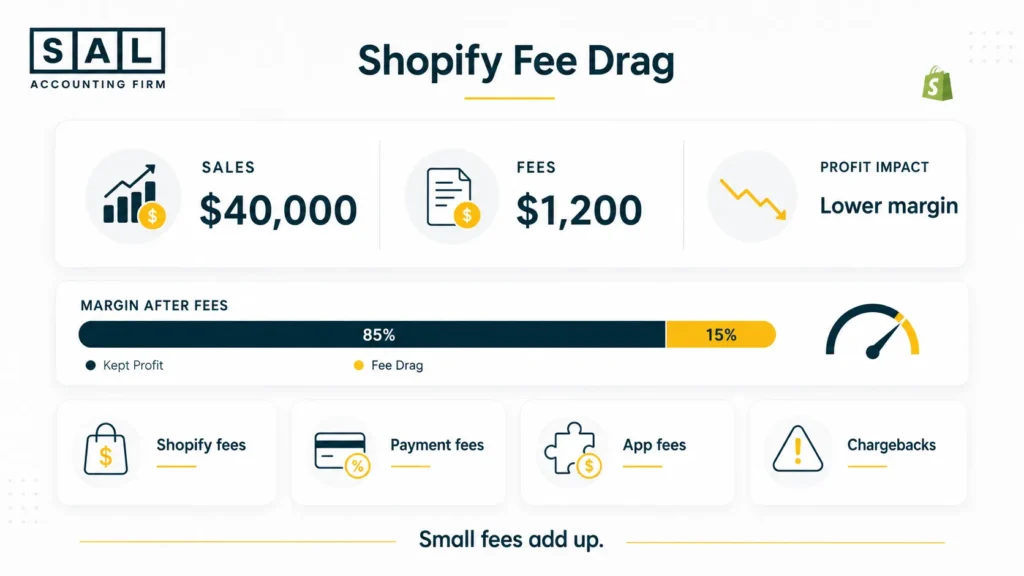
Example: Let’s say your store does $40,000 in monthly sales, and your combined payment and platform fees are around 3%. That is about $1,200 in fees. If that $1,200 is buried inside payouts, you may not notice how much it is reducing your margins.
The fix: Keep Shopify fees, payment processing fees, app fees, and chargeback fees in separate categories. That way, your P&L shows what Shopify is actually costing you. This also matters when reviewing Shopify pricing in Canada, because plan fees, payment rates, app costs, and order volume can all affect what your store actually keeps.
- Also read: “Best Shopify Plan for Beginners”
3. Treating Sales Tax as Profit
Sales tax is not profit. For Canadian Shopify sellers, GST/HST or HST collected from customers should be tracked separately from income. The CRA’s GST/HST rules matter here because tax may pass through Shopify, but it is not money your store actually keeps.
Example: A Toronto Shopify store sells $10,000 of taxable products and collects $1,300 in HST. The customer pays $11,300, but the store did not make $11,300 in revenue. That extra $1,300 should sit separately as tax collected.
If HST gets counted as income, your profit looks higher than it really is. Then, when tax is due, it feels like money disappeared. Really, it was never profitable in the first place. For Canadian sellers, Shopify GST/HST tax tracking becomes much easier when tax is separated before you review profit.
- Also read: “GST/HST Return Filing in Canada”
Shopify COGS mistakes can make gross profit look much better than it really is. COGS means the cost of goods sold, but for Shopify stores, that cost may include more than the supplier price. Freight, duties, packaging, and other product-related costs can all change your real margin.
Example: A seller enters $25 as the product cost in Shopify. The product sells for $80, so gross profit looks like $55. But the real cost may be higher once the full product cost is included.
| Cost Item | Amount | Include? | Why |
| Supplier cost | $25 | Yes | Product cost |
| Inbound freight | $4 | Often | Landed cost |
| Duties | $3 | Often | Import cost |
| Packaging | $2 | Sometimes | Order cost |
| Real cost | $34 | Total | Better margin |
Now the gross profit is not $55. It is $46 before Shopify fees, payment fees, shipping, ads, apps, payroll, and overhead.
The fix: Use real landed cost where possible. Do not rely only on the basic product cost field if it leaves out freight, duties, packaging, or supplier price changes.
This is why Shopify COGS tracking and Shopify inventory accounting need to work together. Product cost only helps if it reflects what was actually sold.
- Also read: “How to Calculate COGS for Ecommerce Stores”
Case Study: How Daniel in Port Credit, Mississauga Fixed His Shopify Payout Confusion1
Daniel runs a home goods Shopify store from Port Credit in Mississauga. His sales are growing, but every month-end feels messy. Shopify shows one number, the bank shows another, and QuickBooks has several deposits labelled simply as sales. He also uses PayPal for some orders, which makes the payout timing even harder to follow. Daniel is not behind because he ignored the numbers. He just does not have a clean system for reading them.
The Problem
Daniel’s accounting file is recording net deposits as revenue. That means fees, refunds, chargebacks, PayPal activity, and timing differences are not showing clearly. His P&L looks simple, but it is missing the details he needs to understand profit.
What We Do
We would set up a monthly payout reconciliation workflow. Shopify Payments, PayPal, bank deposits, refunds, fees, and chargebacks would be matched before the month is closed. Each payout would be broken into the right categories instead of being posted as one sales number. That gives Daniel a cleaner P&L and helps him understand whether growth is actually turning into profit.
5. Ignoring Refunds and Chargebacks
Refunds and chargebacks can make Shopify profit confusing because they may happen after the original sale. A sale might happen in March, but the refund or chargeback may hit a later payout.
Shopify’s chargeback process is a good example of why timing matters. A disputed amount and chargeback fee may affect a later payout, even though the original sale happened in an earlier month.
Example: You sell a product for $180 in March, and the month looks profitable. Then a chargeback hits in April. Shopify deducts the disputed amount, and there may also be a fee.
If that is not tracked clearly, April may look worse than it really was. But the issue was not April sales. It was a March sale being reversed later.
The fix: Track refunds and chargebacks separately. Review them during month-end close and make sure they are not buried inside payout deposits.
A clear Shopify refund policy can also make refunds easier to understand when you review sales, margins, and customer adjustments.
6. Mixing Shipping Income With Shipping Costs
Shipping income and shipping costs are not the same thing. Shipping income is what you charge the customer. Shipping cost is what you pay to the carrier, fulfillment partner, or 3PL. If you mix them together, you may miss a quiet margin problem.
Example: Customers pay $900 in shipping during the month, but your actual carrier and fulfillment costs are $1,350. That means shipping created a $450 loss.
This happens a lot with free shipping, flat-rate shipping, or “free shipping over $75” offers. Those offers can help conversions, but they still need to be measured.
The fix: Track shipping charged to customers separately from shipping paid to carriers or fulfillment providers. Then review whether your shipping strategy is helping, breaking even, or quietly reducing profit.
For sellers shipping outside Canada, cross-border ecommerce shipping can make this harder because duties, brokerage, returns, and carrier costs may not show up in one clean place.
Case Study: How Sarah in Queen West, Toronto Found Out Her Shopify Profit Was Overstated2
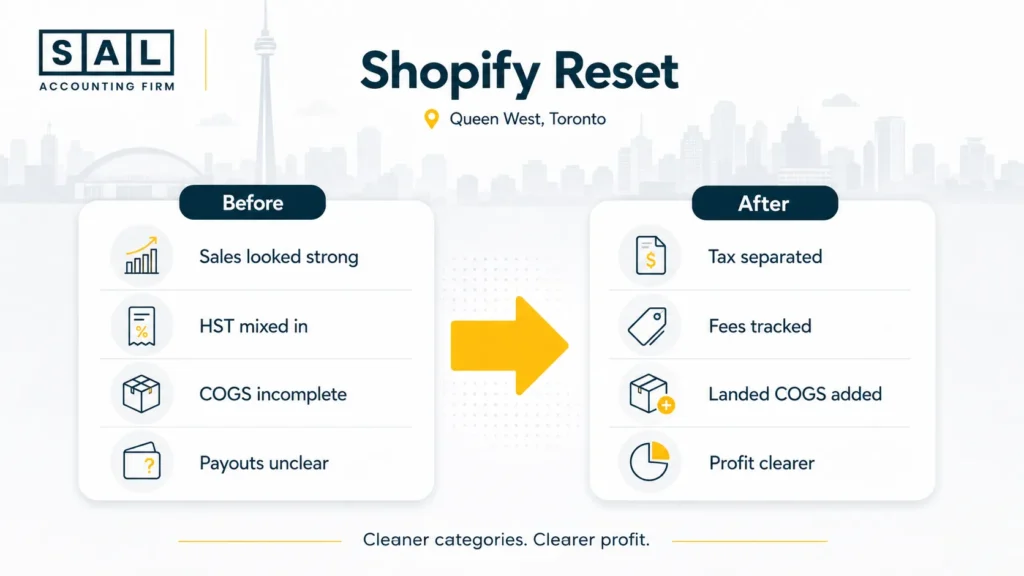
Sarah runs a small skincare brand from Queen West in Toronto. Her Shopify dashboard looks strong most months, and she feels good about the sales coming in. The problem is that her accounting file tells a different story. Her bank deposits are lower than Shopify sales, HST is mixed into income, and product costs only include supplier invoices, not packaging or freight. On paper, the store looks more profitable than it really is.
The Problem
Sarah is treating Shopify sales almost like clean revenue. HST, payment fees, and shipping costs are not clearly separated, so her margins look better than they are. She also has missing COGS because packaging and inbound freight are not added to the real product cost.
What We Do
We would rebuild the monthly Shopify profit view by separating sales, HST collected, refunds, Shopify fees, shipping income, shipping costs, and full landed COGS. Then we would reconcile Shopify payouts to the bank and map each category properly in the accounting software.
The goal is simple: Sarah should be able to see what sold, what it cost, what Shopify deducted, and what the store actually kept.
How to Calculate Accurate Profit for Shopify Each Month
If you want accurate profit for Shopify, do not start with the bank deposit alone. Start with the full picture.
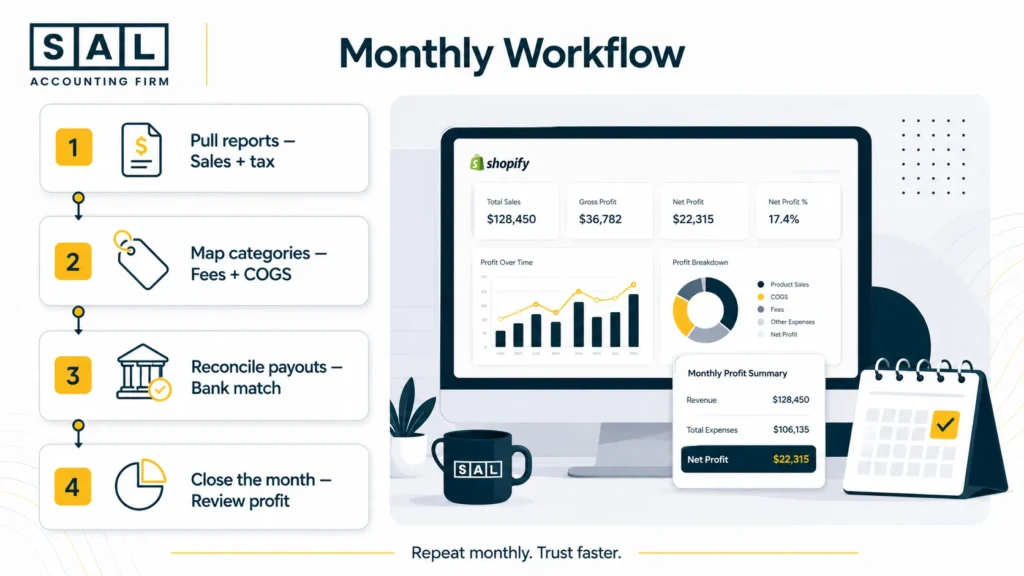
Step 1: Pull the Right Shopify Reports
Useful Shopify reports include:
- finance reports
- sales reports
- payment reports
- payout reports
- tax reports
- refund and chargeback records
- product cost or inventory reports
Sales reports are useful for order activity, but your accounting file still needs to organize that activity into revenue, tax, fees, refunds, COGS, and expenses.
Step 2: Map Each Shopify Number Correctly
Here is a cleaner mapping view:
| Shopify Activity | Accounting Category | Review? | Watch For |
| Product sales | Revenue | Monthly | Gross vs net |
| Discounts | Contra-revenue | Monthly | Promo impact |
| Refunds | Returns | Monthly | Timing gaps |
| GST/HST | Tax payable | Monthly | Not income |
| Shopify fees | Merchant fees | Monthly | Hidden loss |
| Shipping charged | Shipping income | Monthly | Not carrier cost |
| Shipping paid | Fulfillment cost | Monthly | Free shipping loss |
| Product cost | COGS | Monthly | Missing landed cost |
| App fees | Software | Monthly | Recurring costs |
This is where automation tools can help, but only if the setup is right. If the mapping is wrong, automation just moves the mistake faster. That matters with Shopify QuickBooks integration or Shopify Xero integration, because both tools still need categories that match how your store actually works.
Step 3: Reconcile Payouts to Bank Deposits
For each payout, ask:
- Did the payout land in the bank?
- Does the amount match?
- Are fees separated?
- Are refunds included?
- Are chargebacks included?
- Is sales tax separated?
- Is the timing difference explainable?
The point is not to make Shopify, your bank, and QuickBooks look identical at first glance. The point is to make sure you can explain the difference.
Step 4: Close the Month Before Reviewing Profit
Before you trust the P&L, check that:
- sales are recorded properly
- payouts are reconciled
- fees are separated
- refunds and chargebacks are posted
- sales tax is not sitting in revenue
- COGS is updated
- shipping income and shipping costs are separated
- app fees and ad spend are included
Now your profit number is not just a dashboard estimate. It is something you can actually use. A clean Shopify month-end close checklist keeps the cleanup smaller and makes profit easier to trust.
- Also read: “Automate Shopify Accounting and Bookkeeping”
Shopify Profit Calculation Checklist
Use this checklist before trusting your Shopify profit number:
- Did you start with sales, not just bank deposits?
- Did you separate gross sales, net sales, gross profit, and net profit?
- Did you remove sales tax, GST/HST, or HST from profit?
- Did you record Shopify fees separately?
- Did you include payment processing fees?
- Did you account for refunds and chargebacks?
- Did you calculate COGS using real product costs?
- Did you separate shipping income from shipping costs?
- Did you reconcile Shopify payouts to the bank?
- Did you include app fees, ad spend, payroll, and overhead?
- Did you close the month before reviewing profit?
If your Shopify numbers still feel hard to trust, Shopify accounting support at SAL Accounting gives you a cleaner way to track payouts, fees, tax, COGS, and month-end reporting.
If you answer “no” to several of these, that is probably why your Shopify profit feels wrong. The good news is that these are fixable issues. Once the setup is clean, your numbers become much easier to trust.
For most store owners, preparing an ecommerce business for tax season starts with clean monthly records, not a last-minute cleanup.
Final Thoughts: Accurate Profit for Shopify Starts With Clean Categories
Most Shopify profit calculation mistakes come from one simple issue: the numbers are too grouped together. Sales, payouts, fees, tax, refunds, COGS, shipping, and bank deposits all tell part of the story. But if they are mixed together, your profit becomes hard to read.
At the end of the day, accurate profit for Shopify is not about staring harder at the dashboard. It is about building a clean monthly process that shows what came in, what went out, and what your store actually kept. If your Shopify profit is wrong or your numbers are getting harder to trust, book a free consultation with SAL Accounting and get a clearer sense of what needs to be fixed, tracked, or set up next.